2-window mode (split mode)
Usage
Using
->->
you can split the screen into two AvNav windows.
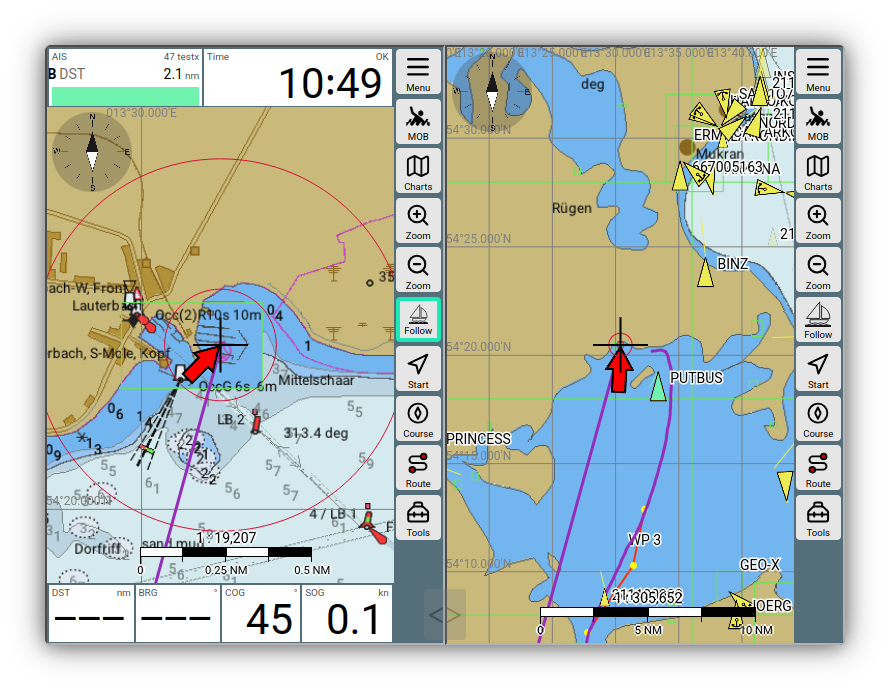
2 window map
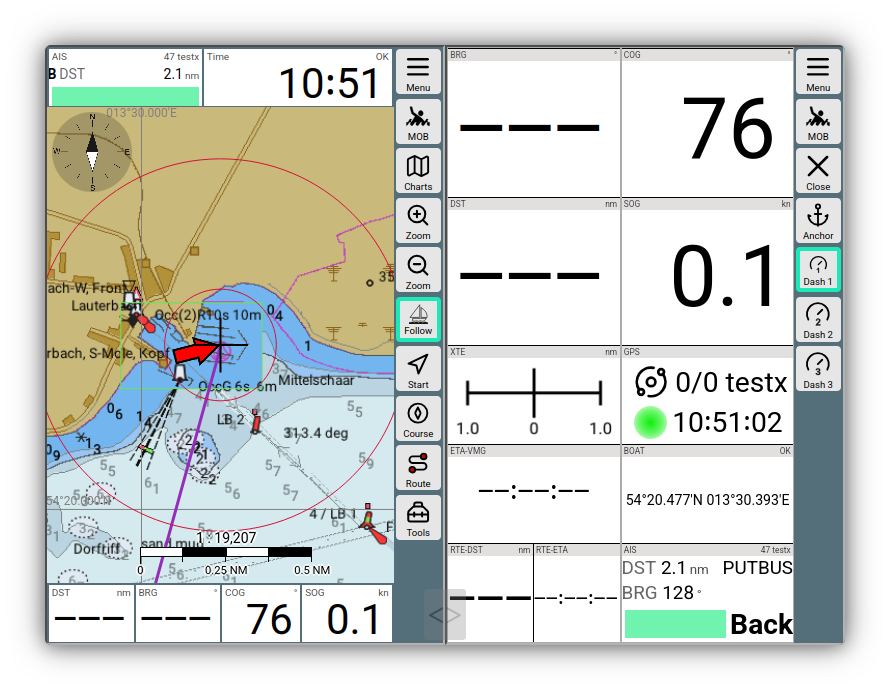
2 window dashboard
The two windows operate largely independently of each other. This allows you to display different views side-by-side as desired. In the example, you can see either two map views—even with different zoom levels—or different maps. A combination of a map view and a dashboard is also possible.
Using
->->
you can exit the 2-window mode.
You can adjust the screen split between the windows using the semi-transparent slider.
Special features
Alarms
In 2-window mode, alarms are only displayed in the right-hand window.
Display settings
Most settings apply to both windows simultaneously in 2-window mode and take effect immediately. However, some settings can be configured separately for each window. These are marked with an * on the settings pages.
These specifically include the settings for the remote control.
Loading and saving settings is also handled separately for each window.
If you would like to configure further settings separately per window, you can modify the splitkeys.json file in the user files. You can access this via
->
where you can edit it. After making changes, you must reload AvNav in the browser.
With the setting
->->General->"start with last split mode"
you can ensure that AvNav restarts in split mode if it was active previously. This is particularly helpful for Android.
Layouts
Layouts can be selected separately for each window. This allows you to customize the map display differently, as shown in the example. A layout loaded in split mode will not remain active once you exit split mode.