Keyboard support
AvNav provides support for operating important functions via keyboard
shortcuts.
The mapping between keys and functions can be configured relatively flexibly.
Principle
The mapping is done in 3 steps:
- Page
This is the page currently displayed in AvNav. A list of pages in AvNav can be found in the code. Using the special name "all", the function can be assigned to all pages. - Group
Here, the functions are grouped again - e.g., "button". - Function
The actual function to be triggered, e.g., clicking a button.
One or more keys can be assigned to the respective functions. A more specific configuration wins in this case. For example, if there is an assignment for the page "all" and another for, e.g., the page "navpage", the latter wins.
Configuration
The key mapping is performed via a keys.json file in the user directory. This file can be edited directly there. There is also a file built into AvNav containing the default assignments.
In the file in the user directory, the values from the default file can be overridden.
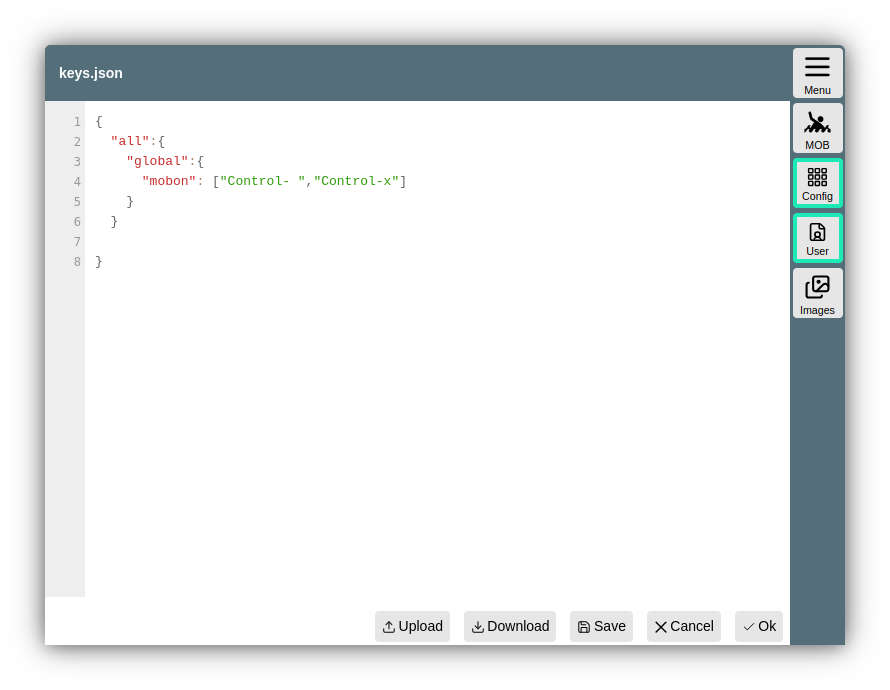
With this example, the keys Ctrl-Space and Ctrl-x are assigned to the "Man over Board" button on all pages.
If only one key is to be assigned, no square brackets are required. After saving the changes, the AvNav page must be reloaded, e.g., via
->Actions->
Page groups and functions
The list of pages, groups, and functions here only represents the current status at the time this documentation was created. Further ones will be added bit by bit.
The names for the keys correspond to the values according to the documentation.
If the Control key is pressed along with a key, a "Control-" is prefixed to the name.
The names of the functions in the "button" group are the names of the buttons, as documented in the button list.
A click on a widget can be achieved via the "widgets" group and the name of the widget. The names can be seen in the layout editor. A SOG widget, for example, could be clickable on all pages with the key "s" using:
The buttons in dialogs are accessible via the "dialogButton" group and the name of the button. These can be easily read from the HTML code, e.g., using the browser's developer tools. However, you should only assign specific keys to "dialogButtons," as otherwise normal value input might potentially no longer be possible.
The following table lists the groups and functions that already have a key assigned in the default settings - or are neither a button, "dialogButton," nor widget. Texts in parentheses in the table are notes on the function.
Assignments
| Page | Group | Function | Default Keys | Function |
|---|---|---|---|---|
| all | map | zoomIn | ["+","PageUp"] | |
| zoomOut | ["-","PageDown"] | |||
| up | "ArrowUp" | |||
| down | "ArrowDown" | |||
| left | "ArrowLeft" | |||
| right | "ArrowRight" | |||
| lockGps (map center to position) | "l" | |||
| unlockGps | "u" | |||
| toggleGps | ["t","Control-a"] | |||
| toggleCourseUp | "b" | |||
| centerToGps (center boat on map once) | ||||
| alarm | stop | "a" | ||
| global | mobon | ["Control- "] | ||
| moboff | ||||
| mobtoggle | ||||
| anchoron (anchor alarm on at current position, since 20220421) | "i" | |||
| anchoroff(since 20220421) | "Control-i" | |||
| view | Cancel | "Escape" | go back to previous page | |
| gpspage | "d" | go to dashboard page | ||
| navpage | "n" | go to map view | ||
| ... | ... | other pages can also be reached directly here if keys are configured for them | ||
| addon | signalk | "Control-0" | as a group, the name of the add-on must be displayed here, as it can be seen on the UserApp configuration page | |
| system-ochartsng-ui | "Control-1" | |||
| system-history-ui | "Control-2" | |||
| system-mapproxy-ui | "Control-3" | |||
| chartSelectList | previous | "ArrowUp" | select previous chart | |
| next | "ArrowDown" | select next chart | ||
| select | "Enter" | choose selected chart | ||
| mainMenu | previous | "ArrowUp" | previous entry | |
| next | "ArrowDown" | next entry | ||
| select | "Enter" | select entry and close menu | ||
| Cancel | "x" | Close menu | ||
| page:navpage | "n" | Open map view | ||
| page:gpspage | "d" | Open dashboard view | ||
| multiview | left | "ArrowLeft" | Scroll display so a new column is shown on the left | |
| right | "ArrowRight" | Scroll display so a new column is shown on the right | ||
| first | "Control-ArrowLeft" | Show first column (left) | ||
| last | "Control-ArrowRight" | Show last column (right) | ||
| gpspage (Dashboard) | button | Cancel | ["d","Escape"] | |
| Gps1 | "1" | Dashboard #1 | ||
| Gps2 | "2" | Dashboard #2 | ||
| Gps3 | "3" | Dashboard #3 | ||
| Gps4 | "4" | Dashboard #4 | ||
| Gps5 | "5" | Dashboard #5 | ||
| Gps6 | "6" | Dashboard #6 | ||
| Gps7 | "7" | Dashboard #7 | ||
| Gps8 | "8" | Dashboard #8 | ||
| Gps9 | "9" | Dashboard #9 | ||
| Gps10 | "0" | Dashboard #10 | ||
| navpage (Navigation page) | widget | AisTarget | "a" | go to Ais Info |
| COG | "d" | go to Dashboard, with "d" you can toggle between navigation page and dashboard | ||
| button | LockMarker | "g" | start navigation to map center | |
| StopNav | "s" | |||
| ShowRoutePanel | ["Control-r","r"] | go to Route Editor | ||
| map | centerToGps | "c" | boat in map center once | |
| page | centerToTarget | "w" | current waypoint in map center | |
| navNext | ["n","Control-n"] | navigation to next point in route | ||
| toggleNav | ["Control-g"] | navigation on/off | ||
| dialogButton | Cancel | "Escape" |