AvNav on Android Auto
For using AvNav on a boat, you typically need a display that is as bright as possible ("sunlight-readable") and at least 8 inches in size. Due to the increasing popularity of modern navigation and entertainment systems in cars, there are more and more affordable displays (< €100) that offer high brightness and are intended for use in cars. These displays often do not have their own navigation or display software but instead rely on Android Auto or Apple CarPlay .
This requires a corresponding mobile device (Android or iOS) with the appropriate software. These displays usually support a connection via USB - and in newer versions, also via Bluetooth and Wi-Fi.
Since there is also an Android version of AvNav, you can set it up for display on an Android Auto-capable screen. You can then keep your mobile device safely in the cabin, and only the display needs to be visible and accessible outside, if necessary.
This guide describes how to do this.
Prerequisites
You must have Android Auto installed on your mobile device - on modern devices, this is usually pre-installed.
Furthermore, an app that is intended to be used under Android Auto must be prepared accordingly. Google sets strict standards regarding which apps are permitted to use Android Auto and with which functions.
An app like AvNav cannot directly comply with these standards, but the following guide describes how to use it anyway.
The solution described below requires a mobile device with at least Android 15.
Preparations
The steps described here only need to be performed once to prepare the system for use.
Since AvNav itself cannot run directly under Android Auto, the server function of AvNav is used. This means you only need a browser that is capable of running under Android Auto.
For this purpose, there is the AABrowser. Since it is not available in the Play Store, you must download the APK directly from the GitHub release page and install it on your mobile device. To do this, you must allow installation from unknown sources.
As described on the GitHub page, you must also allow Android Auto on your mobile device to use apps that do not meet Google's strict standards.
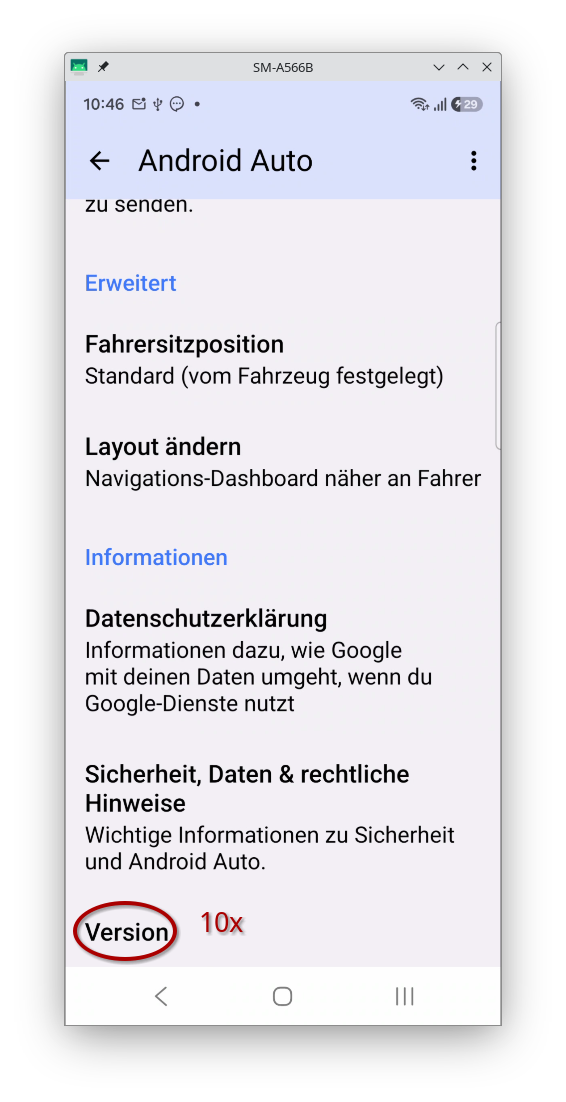
To do this, open Android Auto on your mobile device and activate developer mode by tapping "Version" 10 times.
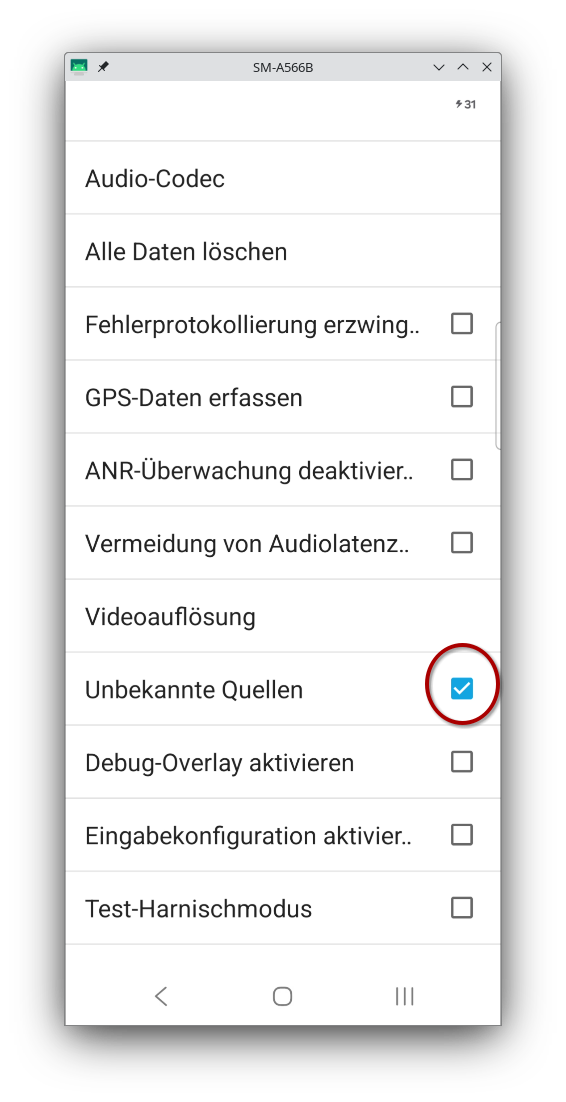
Via the menu (3 dots), go to the developer settings and activate "Unknown sources".
Afterwards, you can use "Customize launcher" in Android Auto to ensure that the AABrowser appears in the Android Auto launcher.
With that, you have completed the first part - if you now connect the mobile device to the Android Auto display, you can open the AABrowser there.
Now, a bookmark for AvNav is created in the AABrowser to quickly open the display.
To do this, start AvNav and check once more if the web server is active under ->.
Afterwards, you can send AvNav to the background (do not exit!) via ->-> .
Now open the AABrowser once directly on the mobile device and enter the address http://127.0.0.1:8080 (the port must, of course, match the port configured in the AvNav web server - 8080 is the default). AvNav should now be displayed.
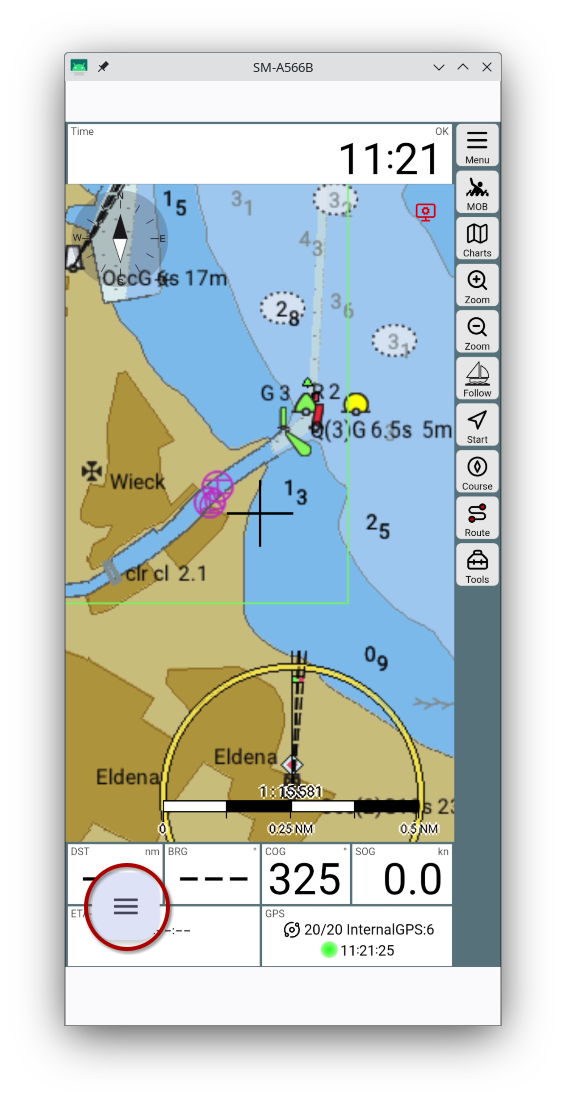
Via the menu button of the AABrowser, you can now set up this page for startup.
First, create a bookmark for the page ("Bookmarks").
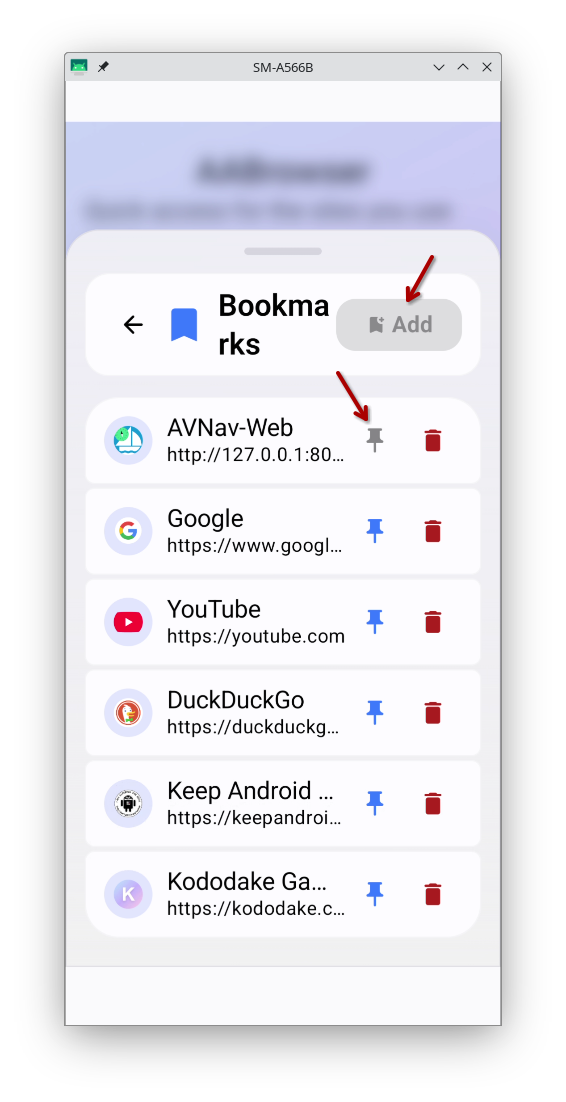
In the image, the bookmark has already been created; otherwise, you must first click "Add". Using the pin button, you can now place this bookmark into a so-called "slot" - this is a list of bookmarks that are displayed directly on the start page.
After that, you can exit the AABrowser and restart it to test it. The browser always remembers the last displayed page and will normally open AvNav again immediately.
You can hide the AABrowser menu button display by switching AvNav to full-screen mode:
->->
Normal usage
To use AvNav in this configuration, you must start AvNav once after booting up the mobile device and send it to the background. Unfortunately, Google's privacy settings prohibit the automatic start of software that wants to access location data, so this manual step is necessary.
However, some mobile devices or other apps offer functions to automatically launch certain apps - in this case, you can also have AvNav start automatically.
After that, you can connect the mobile device to the display (this should normally happen automatically) and launch the AABrowser on the display.
Automatic start on Samsung
Samsung mobile devices offer a very convenient option with Modes and Routines to, for example, launch an app when you connect to an Android Auto display.
To do this, you must create a routine that has "Connect Android Auto" as a condition and an app launch action as the action. AvNav offers the action "AvNav Background" for this - you can select this from a list. It is done in just a few clicks. This causes AvNav to start automatically in background mode when Android Auto is connected. Of course, you can also have AvNav start directly - then the normal AvNav screen is visible on the mobile device.
Other mobile devices
If the mobile device itself does not offer such an automation option, you can use an app like MacroDroid or Tasker.
Safety notice
For the described use case, using the AABrowser on a display poses no danger.
However, if you also use the same mobile device in a car and connect it to the display there, the use of the AABrowser is definitely not permitted. It is therefore the user's responsibility to comply with this.